IRR on a Financial Calculator: HP 12C, BA II Plus, and Excel (2026)
Exact keystroke sequences for HP 12C and BA II Plus, plus XIRR in Excel. Worked investment example: enter cash flows, press IRR, read result. Under 5 minutes.
The HP 12C has had a dedicated IRR key since 1981, and it trips up experienced analysts who switch from the BA II Plus. The two calculators use completely different input methods. Entering cash flows the wrong way produces an error, a plausible-looking wrong number, or nothing at all, with no indication of which problem occurred.
The IRR Calculator handles any cash flow series without a key sequence. This guide covers the exact input method for the HP 12C, the BA II Plus cash flow worksheet, Excel's IRR and XIRR functions, and what to do when the calculator refuses to return a number.
IRR on the HP 12C: The g CFj Key Sequence#
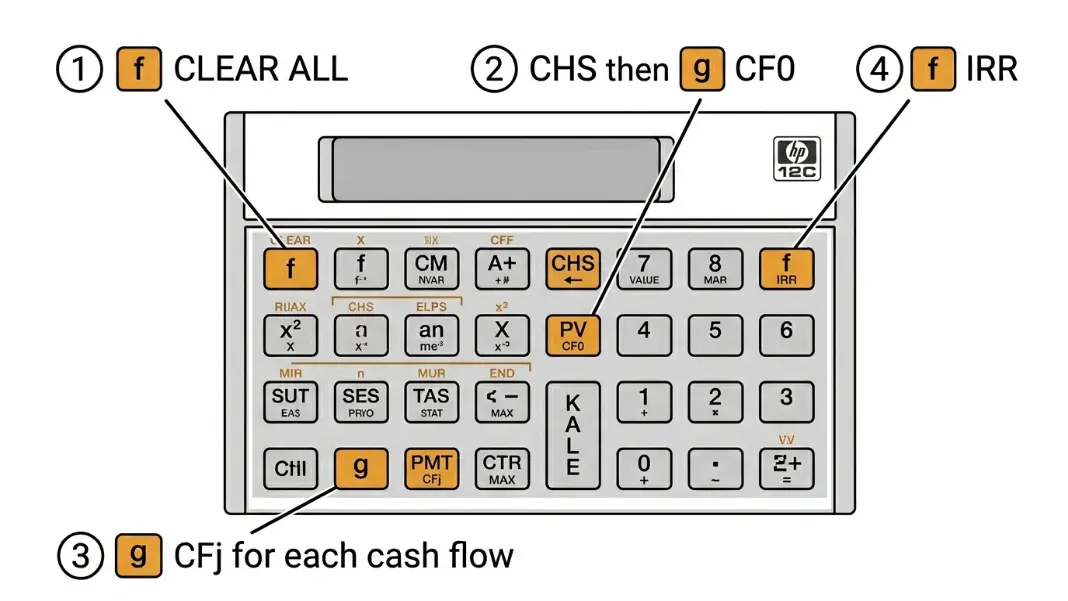
The HP 12C stores cash flows in registers using the g prefix keys. There is no dedicated worksheet. All inputs go directly into a register sequence.
Key sequence:
- [f] [CLEAR ALL]: wipes all registers before starting
- Initial investment as a negative: enter the amount, press [CHS], then [g] [CF0]
- Each subsequent cash flow: enter the amount, then [g] [CFj]
- If the same cash flow repeats in consecutive periods: enter the amount, [g] [CFj], then enter the number of repetitions, [g] [Nj]
- Once all cash flows are in: [f] [IRR]
Worked example: 5-year investment
Year 0: -$100,000 (initial outflow)
Year 1: $20,000
Year 2: $25,000
Year 3: $30,000
Year 4: $35,000
Year 5: $45,000
Key sequence:
100000 [CHS] [g] [CF0]
20000 [g] [CFj]
25000 [g] [CFj]
30000 [g] [CFj]
35000 [g] [CFj]
45000 [g] [CFj]
[f] [IRR]
Result: 18.72%
The most common HP 12C error: Skipping [f] [CLEAR ALL] before starting. Leftover cash flows from a prior calculation sit in the registers silently and get appended to the new series. Clear registers every time, even when the display looks blank.
Second most common error: Entering CF0 as positive. On the HP 12C, the initial outflow must be negative using [CHS]. Entering a positive CF0 produces a result, but it will be wrong: the calculator treats it as an inflow at time zero and solves for a different problem.
IRR on the BA II Plus: The CF Worksheet#
The BA II Plus uses a dedicated cash flow worksheet with labeled fields, which is more structured than the HP 12C but has its own input traps.
Key sequence:
- Press [CF] to open the cash flow worksheet
- At CF0, enter the initial investment as a negative number, press [ENTER], then [↓]
- At C01, enter the first period cash flow, press [ENTER], then [↓]
- At F01, enter the frequency for that cash flow (default is 1). If C01 repeats for n consecutive periods, enter n here instead of re-entering the value manually. Press [↓] when done.
- Continue entering C02, F02, C03, F03 for each period
- When all cash flows are entered: press [IRR], then [CPT]
Same 5-year example on BA II Plus:
[CF]
CF0 = -100000 [ENTER] [↓]
C01 = 20000 [ENTER] [↓], F01 = 1 [ENTER] [↓]
C02 = 25000 [ENTER] [↓], F02 = 1 [ENTER] [↓]
C03 = 30000 [ENTER] [↓], F03 = 1 [ENTER] [↓]
C04 = 35000 [ENTER] [↓], F04 = 1 [ENTER] [↓]
C05 = 45000 [ENTER] [↓], F05 = 1 [ENTER]
[IRR] [CPT]
Result: 18.72%
Using frequency (F) to compress input: If years 2, 3, and 4 all have a $30,000 cash flow, enter C02 = 30000, F02 = 3. The calculator treats the frequency as three consecutive identical periods. This is faster and reduces the chance of a mis-entry for long series.
One meaningful difference between the two calculators: the BA II Plus clears the CF worksheet when you press [CF] after powering on. The HP 12C retains register contents until you explicitly clear them. This asymmetry is the most common source of confusion when working with both calculators in the same session.
The Cap Rate Calculator handles the going-in yield side of an investment. Cap rate tells you what you are buying at; IRR tells you what you actually earned across the full hold period including exit.
Excel IRR and XIRR: When Each One Applies#
Excel's =IRR() function assumes equal time intervals between every cash flow. Each period is treated as identical in length, whether you label them as months, quarters, or years.
=IRR(values, [guess])
The values range starts with the initial outflow (as a negative number) and includes every subsequent period in order. The optional guess parameter defaults to 10% if omitted. For investments with unusual return profiles, specifying a guess closer to the expected result speeds convergence and reduces the chance of landing on a wrong root.
The same 5-year example in Excel:
A1: -100000
A2: 20000
A3: 25000
A4: 30000
A5: 35000
A6: 45000
B1: =IRR(A1:A6)
Result: 18.72%
XIRR for uneven time periods:
=XIRR(values, dates, [guess])
Use XIRR when cash flows occur on specific calendar dates rather than at uniform intervals. A real estate deal that closes in March, generates monthly rents, and sells in November three years later does not have equal annual intervals. XIRR takes the actual dates and calculates the true annualized return.
Values: -500000, 3200, 3200, ..., 680000
Dates:  2023-03-15, 2023-04-01, 2023-05-01, ..., 2026-11-01
Formula: =XIRR(B1:B40, C1:C40)
XIRR returns #VALUE! if any date is entered incorrectly or is not a valid Excel date format. The values range must contain at least one negative and one positive number.
For the formula derivation and the NPV relationship behind the calculation, the IRR Formula Guide covers the iterative math in detail. The calculator keys and spreadsheet functions are running the same Newton-Raphson iteration; the key sequence is just the interface.
No Solution, Error Messages, and the Multiple IRR Problem#
Three situations produce unreliable results on any calculator or spreadsheet.
Convergence failure:
The calculator iterates from a starting guess and adjusts until NPV reaches zero. If no rate satisfies the equation, iteration fails. This happens most often when:
- All cash flows after the initial outflow are negative (no recovery of investment)
- The iteration starts from a poor guess too far from the true root
- Cash flows are entered with incorrect signs
On the HP 12C, a convergence failure shows as "Error 3." On the BA II Plus, the worksheet displays "Error" or an implausible number. In Excel, =IRR() returns #NUM!. In Excel, the fix is to supply a different guess: =IRR(A1:A6, 0.30) for a high-return estimate, or =IRR(A1:A6, -0.30) if you expect a loss.
The multiple IRR problem:
Descartes' Rule of Signs states that an equation can have as many positive roots as there are sign changes in the coefficients. For a cash flow series, each time the sign changes from positive to negative or negative to positive is one sign change. A real estate deal with:
- Year 0: large outflow (negative)
- Years 1-5: positive operating income
- Year 6: large renovation cost (negative)
- Year 7: sale proceeds (positive)
...has three sign changes and can have up to three mathematically valid IRR values. Both calculators and Excel will return one value, but which root they converge on depends entirely on the starting guess. Neither will warn you that multiple solutions exist.
The correct response to multiple sign changes is to use MIRR instead, which produces a unique result.
Reinvestment rate assumption:
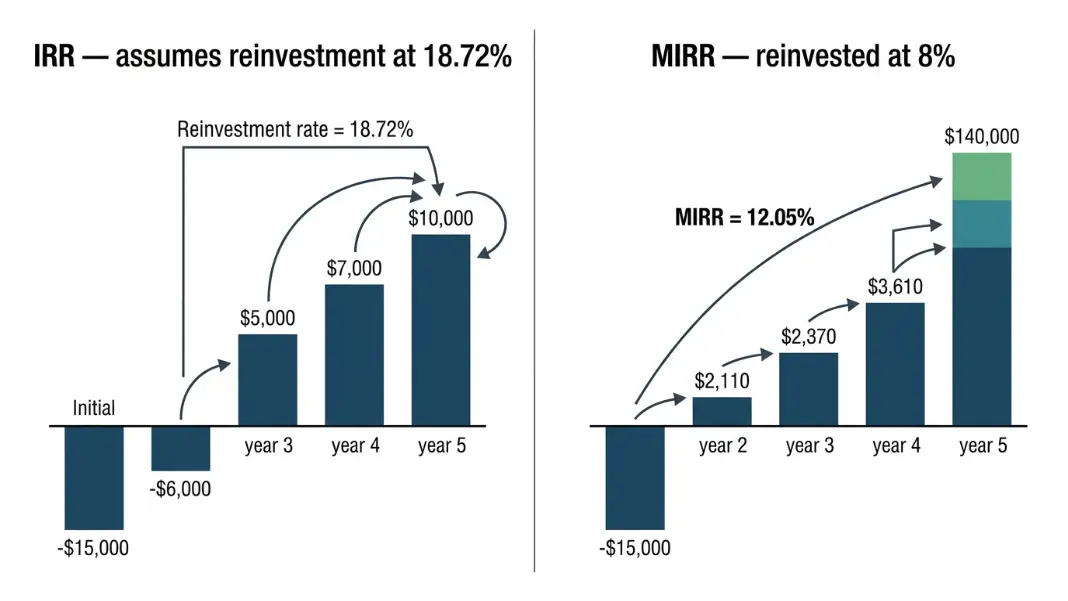
IRR implicitly assumes all interim cash flows are reinvested at the IRR rate. A project showing 30% IRR assumes every dollar of interim income finds another 30% investment for the remainder of the hold. That is rarely achievable. When interim cash flows are reinvested at a lower rate, the actual return is lower than the IRR.
The Cap Rate vs IRR Guide covers when this gap matters and how to interpret both metrics in a real estate underwriting context.
MIRR: The Result Your Financial Calculator Cannot Produce Automatically#
Modified Internal Rate of Return fixes the reinvestment assumption by splitting the calculation into two components and using a specified reinvestment rate rather than assuming reinvestment at the IRR itself.
MIRR = (FV of positive cash flows at reinvestment rate / PV of negative cash flows at finance rate)^(1/n) - 1
Where:
- FV of positive cash flows = all inflows compounded forward to year n at the reinvestment rate (typically the firm's cost of capital)
- PV of negative cash flows = all outflows discounted back to year 0 at the finance rate (typically the borrowing rate)
- n = total number of periods
Worked example: same 5-year investment, 8% reinvestment rate, 6% finance rate
Positive cash flows compounded to year 5 at 8%:
Year 1: 20,000 × (1.08)^4 = 27,210
Year 2: 25,000 × (1.08)^3 = 31,492
Year 3: 30,000 × (1.08)^2 = 34,992
Year 4: 35,000 × (1.08)^1 = 37,800
Year 5: 45,000 × (1.08)^0 = 45,000
FV total = 176,494
PV of initial outflow: $100,000 (already at year 0)
MIRR = (176,494 / 100,000)^(1/5) - 1
MIRR = (1.76494)^(0.2) - 1
MIRR = 12.05%
The MIRR of 12.05% is lower than the IRR of 18.72% because the interim cash flows are reinvested at 8%, not 18.72%. For most real estate and private equity deals, the MIRR figure is the more conservative and defensible number to present to partners or lenders.
In Excel: =MIRR(values, finance_rate, reinvest_rate). This is the most direct way to calculate MIRR.
On the HP 12C and BA II Plus, there is no MIRR key. The calculation requires computing the FV of positive flows using the [FV] function, then computing MIRR using [yx] for the exponent. Most analysts run MIRR in Excel and use the financial calculator for IRR cross-checks.
On the HP 12C: press [f] [CLEAR ALL], enter the initial outflow with [CHS] [g] [CF0], enter each subsequent cash flow with [g] [CFj], then press [f] [IRR]. On the BA II Plus: press [CF], enter CF0 as a negative at the first field, enter C01/F01 through Cn/Fn for each period, then press [IRR] [CPT]. Both calculators iterate numerically to find the rate that makes NPV zero. The IRR Calculator runs the same calculation without a key sequence.
IRR solver refers to the iterative numerical method the calculator uses to find the discount rate that makes NPV equal to zero. There is no closed-form algebraic formula for IRR; it requires a starting guess and repeated adjustment until the result converges. The HP 12C and BA II Plus both use Newton-Raphson iteration internally. When the solver fails to converge, it returns an error, typically because no rate satisfies the equation or because the starting guess is too far from the true answer.
IRR assumes equal time periods between every cash flow: annual, quarterly, or monthly, as long as each interval is identical. XIRR takes the actual calendar dates of each cash flow and calculates the annualized return based on exact time differences. For investments with irregular payment dates, monthly rents entered annually, or deals that close mid-year, XIRR produces the accurate annualized return. IRR gives the wrong answer in those cases because it treats unequal intervals as equal.
An IRR error means the iteration failed to converge on a solution. This happens when cash flows produce no positive NPV at any discount rate (a loss-only investment), when the starting guess is too far from the true answer, or when cash flows change sign more than once (the multiple IRR problem). On the HP 12C, Error 3 indicates failed iteration. In Excel, #NUM! means the same thing. Try supplying a different guess in Excel: =IRR(range, 0.30) for a high-return deal or =IRR(range, -0.20) for an investment where a loss is possible.
When cash flows change sign multiple times, multiple mathematically valid IRR values may exist. Both financial calculators and Excel return one value, but it may not reflect the economically meaningful return. The recommended approach is to calculate MIRR instead. MIRR requires specifying a reinvestment rate and a finance rate, produces a single unique result, and avoids the reinvestment assumption problem. Excel's =MIRR(values, finance_rate, reinvest_rate) handles this directly. The HP 12C and BA II Plus require manual MIRR computation.
Estimating IRR by hand uses linear interpolation between two trial discount rates. Choose a low rate that produces a positive NPV and a high rate that produces a negative NPV. The IRR lies between them. Estimate: IRR = low rate + (NPV at low rate / (NPV at low rate minus NPV at high rate)) × (high rate minus low rate). This method, used before financial calculators existed, typically gives an estimate within 1 to 2 percentage points and is sufficient for quickly checking whether an investment clears a target hurdle rate.
Written by
Hassaan Rasheed
Web Developer & Content Researcher
Hassaan builds calculators and writes source-linked guides across the site's subject areas. Calculator methods and reference data are documented in each guide so readers can verify the underlying sources.
About the author and methods